
Kids360: Parental Control App
MINDCARE LAB LTDParenting
4.3979.00 Reviews
- Version
- 2.89.0
- Installs
- 10.00M
- Age Rating
- Everyone
Screenshots

Our Review of Kids360: Parental Control App
 Analysis by Appyee
Before I choose a parental-control app, I ask what problem I actually need it to solve. Is the main concern screen time, app access, or knowing where a child is during a trip? Those needs overlap, but they are not interchangeable. Kids360 brings screen-use controls and location tracking together, which makes it a practical choice when I want one place to handle several everyday boundaries rather than relying on separate tools.
That combination is most useful when the rules need to be clear and repeatable. I can think about a limit before the familiar “five more minutes” negotiation starts, then use the app as a support for the agreement rather than as the whole parenting strategy. Location tracking adds a different kind of reassurance, but it should sit alongside direct communication: a map can help with coordination, while a quick conversation still explains what a child needs to do next.
Start with the family’s actual routine
For a parent deciding whether this is the right fit, I would first list the moments that cause friction. If games stretch into homework time, app limits and blocking are directly relevant. If the hardest part is coordinating school pickup or an after-school activity, location tracking may matter more. If the problem is mainly that every device in the household needs a different set of rules, it is worth checking how the setup works across the devices your family uses before making Kids360 the centre of your routine.
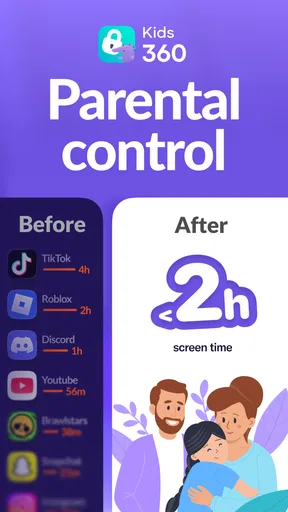
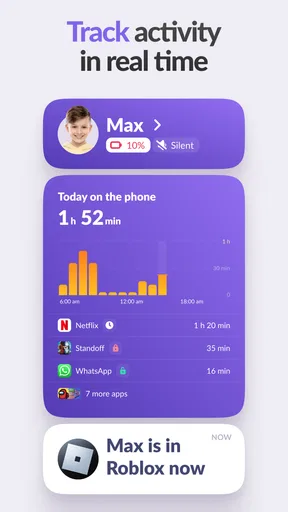
The useful question is not whether a child uses a screen “too much” in the abstract. It is whether a particular pattern is getting in the way of sleep, schoolwork, family time, or a child’s ability to stop when agreed. I would use the weekly report to start that conversation: look at which apps are taking up time, ask what the child is doing there, and then decide together whether a limit is needed. A total alone does not explain whether time was spent chatting with friends, watching videos, or playing a game, so I would treat the report as a prompt for discussion, not a verdict.
Where the combined approach helps
Kids360 is a parenting app from ANKO Solutions LLC. It is free to download, has an Everyone age rating, and has a 4.4 average from around 227,000 ratings, with over 10 million installs. Those figures suggest that it has reached a broad audience, but they do not tell me whether its approach will suit every household. The practical appeal is its mix of controls: screen-time limits, app blocking, usage reports, notifications, and location tracking address several common parental concerns without making the app only about one of them.
A realistic use case is a school night when a child needs a device for a particular task but tends to drift into games afterward. I would agree on the expectation first, use a limit or block where appropriate, and then check the usage summary later rather than repeatedly hovering over the child. For a day out, location information may also help a parent coordinate a pickup. These are different jobs, and the app is more useful when I choose the relevant tool for the situation instead of turning every control on by default.
Know what it can—and cannot—settle
Parental controls work best when children understand the rules and know what is being monitored. I would explain why a limit exists, what happens when it is reached, and when I might use location tracking. That conversation is not a technical extra; it affects whether the app feels like a shared boundary or a surprise surveillance tool. As children get older, it may also be sensible to revisit the rules rather than assume the same settings will remain appropriate.
There is a trade-off in using any monitoring app: more visibility can make coordination easier, but it can also make a family rely on alerts instead of talking. Notifications about blocked apps, for example, can be useful when they prompt a calm check-in. If every alert turns into an accusation, the technology may increase conflict rather than reduce it. I would decide in advance which alerts deserve action and which are simply information, then avoid treating a single attempt to open an app as proof of bad intent.
It is also worth being realistic about what a location feature can do for a parent. It can support everyday coordination, but it is not a substitute for agreed meeting points, a child knowing whom to contact, or an adult checking in directly when plans change. For a family that only needs occasional location sharing, a simpler location-sharing option may be enough. For a family whose main concern is device use, a screen-time-focused tool may be a better match if it offers the specific controls they need without the extra location layer.
Keeping Tabs with Ease
First off, setting up Kids360 is a breeze. The app walks you through the process like a seasoned tour guide. You link it to your child’s device, and voilà, you’re in the driver’s seat. The interface is super user-friendly, which is a relief because, let’s be honest, who has time for complicated setups?
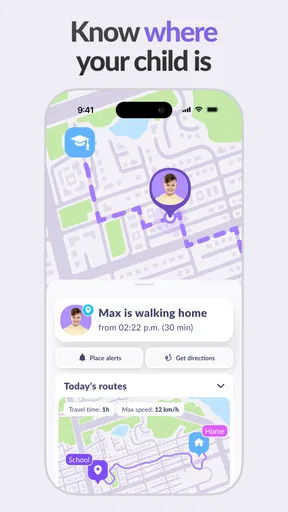
With this app, you can monitor screen time, set limits, and even track your kid’s location. It’s like having an extra set of eyes, which is pretty comforting in today’s digital age. The location tracking feature is especially handy when you’re a bit of a worrywart like me.
Setting Boundaries
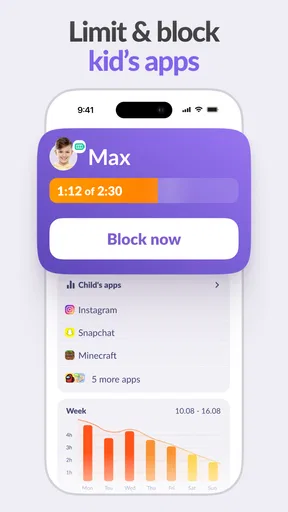
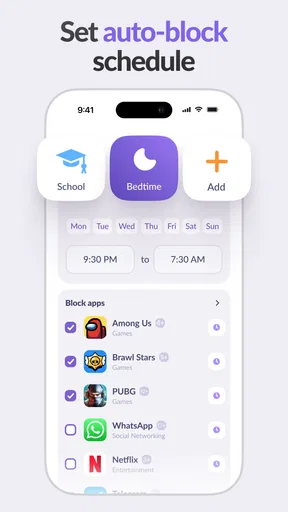
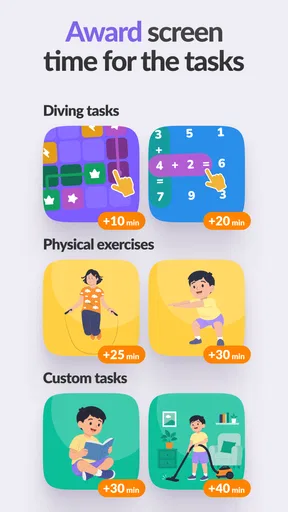
One of the standout features is the ability to set time limits on app usage. I was able to decide how many minutes my kid could spend on games or social media each day. And guess what? No more battles at bedtime over turning off the tablet. The app does the nagging for you!
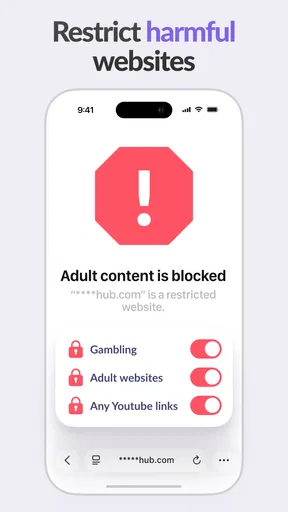
There’s also an option to block certain apps completely. This is perfect if you’re concerned about age-inappropriate content or just want to ensure your child focuses on homework rather than sneaking in some extra game time.
Stay in the Loop
Another cool feature is the weekly reports. You get a breakdown of how much time your kid spent on each app. It’s like a digital report card for screen time. Plus, the app sends you notifications if they try to access a blocked app, so you’re always in the loop.
One thing I really appreciate is the app’s gentle approach. It doesn’t feel like a prison guard. Instead, it promotes healthy screen habits and encourages kids to take breaks from devices.
Worth the Investment?
So, is Kids360 worth downloading? In my humble opinion, absolutely! It’s a smart investment for any parent looking to manage their child’s digital diet. The peace of mind it provides is priceless, and the app continues to improve with regular updates.
Of course, it’s essential to have open conversations with your kids about why you’re using the app. It’s all about creating a balanced relationship with technology, and Kids360 is a helpful tool in achieving that.
In a world where screens are everywhere, having a bit of control isn’t just nice—it’s necessary. So go ahead, give it a try. You might just find it’s the parenting assistant you didn’t know you needed!
Think through the setup before relying on it
The app’s current version is 2.71.1, and it requires Android 7.0 or later. It is free to install, while in-app purchases range from $0.99 to $99.99 per item. I would keep that distinction in mind when deciding whether to try it: downloading costs nothing, but some paid options may appear as you explore. Before building a family routine around a particular control, check what is available in your own setup and whether it meets your needs without an optional purchase.
For a smoother start, I would configure only the rules that address an immediate problem. If bedtime is the issue, begin with that boundary instead of blocking a long list of apps and setting multiple limits at once. Then explain the change, observe how it affects the routine, and adjust. A small, understandable rule is easier for a child to follow—and easier for a parent to judge—than a complicated set of restrictions introduced all at once.
There is also a practical distinction between a daily limit and a complete block. A limit can leave room for ordinary use while making an endpoint predictable; a block is more decisive and can make sense for a particular app or situation. I would reserve blocking for a clear reason, since removing access without discussion can invite arguments about fairness. If a child needs an app for school or communication, consider that role before applying a blanket rule.
Choose the alternative by the job it does
Compared with relying only on a device’s built-in screen-time settings, Kids360’s appeal is the way app controls and location tracking sit together in a parenting-focused experience. Built-in controls may be sufficient if a household only needs basic limits on one device and prefers not to add another app. A dedicated location-sharing option may be better if screen use is already manageable and the family only wants help coordinating where everyone is. I would not choose a broader tool simply because it has more functions; the right choice is the one that solves the recurring problem without adding needless monitoring.
It may also be the wrong fit for a teenager who expects a high degree of privacy, especially if the family has not agreed on what will be tracked and why. In that situation, a transparent conversation and narrower, mutually understood limits may work better than constant oversight. On the other hand, for a younger child who is still learning to stop using a device at an agreed time, predictable app limits can take some pressure off the parent-child exchange. The difference is not just age; it is whether the child understands the rule and whether the family can use the controls proportionately.
Make the reports useful, not punitive
A weekly breakdown can be more revealing when I compare it with the family’s routine rather than react to a single large number. If a child’s screen use rises during a rainy weekend, that may call for a different conversation than a pattern of late-night gaming on school days. I would look for repeated habits, ask what the apps are being used for, and agree on one practical adjustment. This turns reporting into a way to notice patterns, not a scorecard for judging a child.
Blocked-app notifications need the same care. A child may tap an unavailable app out of curiosity, forget a rule, or genuinely be trying to use it for a reasonable purpose. I would use the alert as context for a short check-in, not as a reason to assume deliberate rule-breaking. If alerts become noisy or stressful, revisit which apps are blocked and whether the rule still makes sense. A control that creates constant interruptions is not helping simply because it is active.
Consider the cost of changing habits
Switching parental-control routines takes effort even when an app is straightforward. Parents need to agree on the rules, children need to understand them, and everyone has to learn what happens when a limit is reached. If you already use another control system, I would avoid running two sets of restrictions indefinitely: overlapping rules can make it unclear which setting is responsible when access changes. Make a short list of what the current arrangement does well, compare it with what you want Kids360 to handle, and move one boundary at a time.
That gradual approach also makes it easier to spot friction. If the child cannot use a device for a legitimate task, the rule may need adjusting; if location information is not relevant to your routine, there is no reason to make it the centre of the setup. A parental app should reduce repeated arguments or coordination hassle, not create a second job of interpreting settings and alerts. I would give a new arrangement enough ordinary days to see whether it genuinely makes family life calmer.
Who I would recommend it to
I would consider Kids360 for parents who want a shared place to manage app access and screen-time boundaries, and who also find location tracking useful for routine coordination. Its free download makes it easy to explore, while the optional purchases mean I would check the available choices before assuming every feature or configuration is included at no cost. The app’s broad reach and 4.4 average are reassuring context, but the best test is whether its controls fit the devices and agreements in your home.
I would skip it—or begin with a simpler option—if all you need is a basic bedtime reminder, if built-in settings already handle your household’s needs, or if location monitoring would undermine trust without solving a real safety or coordination problem. I would also avoid treating any parental-control app as a replacement for age-appropriate conversations. Kids360 is most convincing as a practical aid to rules a parent and child can explain to each other, not as a way to make decisions on a family’s behalf.
A measured recommendation
My recommendation is to try it when screen-time boundaries and location coordination are both genuine needs, then start with one or two clear rules and review how they work. Ask whether the weekly reports help you make a better decision, whether alerts are useful rather than distracting, and whether the child understands the reason behind each limit. If those answers are positive, the app can make a busy routine feel more manageable. If not, a narrower built-in control or a simple family agreement may be the better tool.
Ultimately, the value is not in tracking every minute or checking every notification. It is in making expectations more consistent while leaving room for trust and conversation. Used that way, Kids360 can support a calmer approach to devices; used as a substitute for explaining boundaries, it is unlikely to solve the underlying disagreement. I would choose it for the combination of controls, keep the settings proportionate, and be ready to change course if the family’s needs change.
Privacy and Permissions
See what permissions an app requests and how it handles your data.
- Phone
- read phone status and identity
- Photos/Media/Files
- read the contents of your USB storage, modify or delete the contents of your USB storage
- Storage
- read the contents of your USB storage, modify or delete the contents of your USB storage
- Microphone
- record audio
- Wi-Fi connection information
- view Wi-Fi connections
- Device ID & call information
- read phone status and identity
- Other
- view network connections, pair with Bluetooth devices, access Bluetooth settings, connect and disconnect from Wi-Fi, full network access, run at startup, draw over other apps, control vibration, prevent device from sleeping
Verdict
Strengths of Kids360: Parental Control App
- User-friendly interface for easy navigation.
- Customizable screen time limits for devices.
- Real-time location tracking for peace of mind.
- App blocking feature for unwanted apps.
- Reports on app usage and screen time.
Limitations of Kids360: Parental Control App
- Requires internet for most features.
- Limited features in free version.
- May drain battery with constant GPS use.
- Some apps may bypass restrictions.
- Setting up can be time-consuming.
Other Releases by MINDCARE LAB LTD
View All
Alli360 by Kids360
Parenting4.5
Similar Picks in This Category
View All
Family Space
Motorola Mobility LLC.3.9

شرطة الأطفال - مكالمة وهمية
Oub Apps4.1

Findmykids: Parental Control
LETEM LTD4.6

Pregnancy + | Tracker App
Philips Electronics UK Limited4.8

Policía de niños - para padres
Kids police4.7

Pregnancy App
Amila4.9
Frequently Asked Questions
What features does Kids360 offer for parental control?
Kids360 provides a comprehensive set of features for parental control, including screen time management, app blocking, location tracking, and activity monitoring. Parents can set daily usage limits, block specific apps or websites, and receive notifications about their child's activities. The app is designed to help parents maintain a balance between digital exposure and offline activities.
Is Kids360 easy to install and set up on my child's device?
Yes, Kids360 is designed to be user-friendly with a straightforward installation process. Once downloaded, the app guides you through setup with clear instructions. Parents need to install the app on both their own device and their child's device, then link the two accounts to start managing settings and monitoring activities.
Can Kids360 track my child's live location?
Kids360 includes a real-time location tracking feature, allowing parents to monitor their child's whereabouts. This feature provides peace of mind by offering live updates and location history. Parents can set specific zones and receive alerts when their child enters or leaves these designated areas, ensuring they always know their child's location.
Does Kids360 support multiple children or devices?
Yes, Kids360 supports multiple children and devices, making it suitable for families with more than one child. Parents can manage and monitor each child's activities individually, setting unique restrictions and permissions based on age and needs. This flexibility ensures personalized control over each child's digital environment.
Is Kids360 safe and secure for my family’s use?
Kids360 prioritizes user safety and data privacy. The app uses encryption to protect sensitive information and complies with data protection regulations. Parents can trust that their family's data is secure, and the app's focus on privacy ensures that no unauthorized access to their child’s information occurs.
